 SENDO
SENDO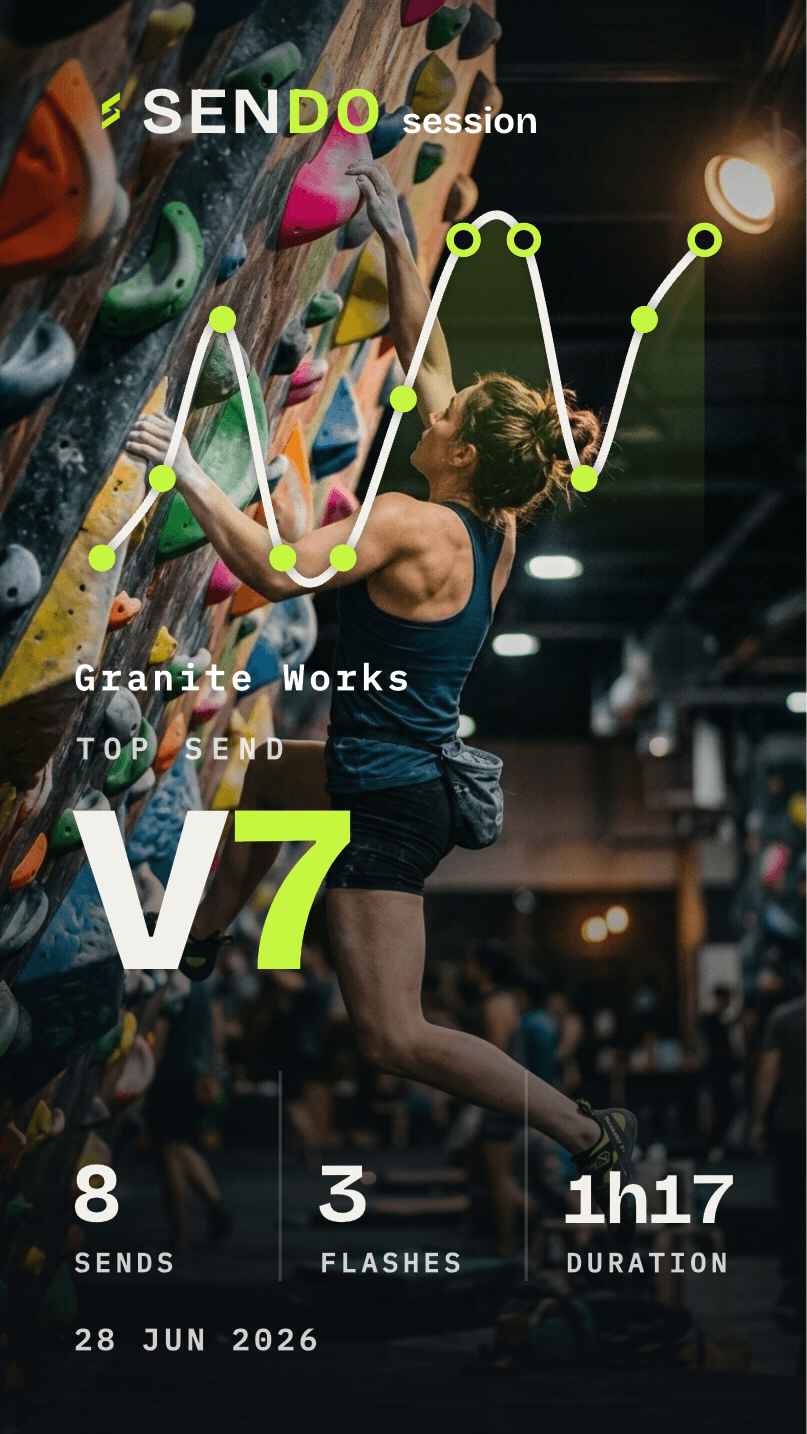
A hard send deserves better than a screenshot of a spreadsheet. SENDO turns any logged climb into a card built for the feed — your grade, your gym, your session, styled in the same athletic-utilitarian look as the app. Here are the three styles and how to post one.
The three share styles
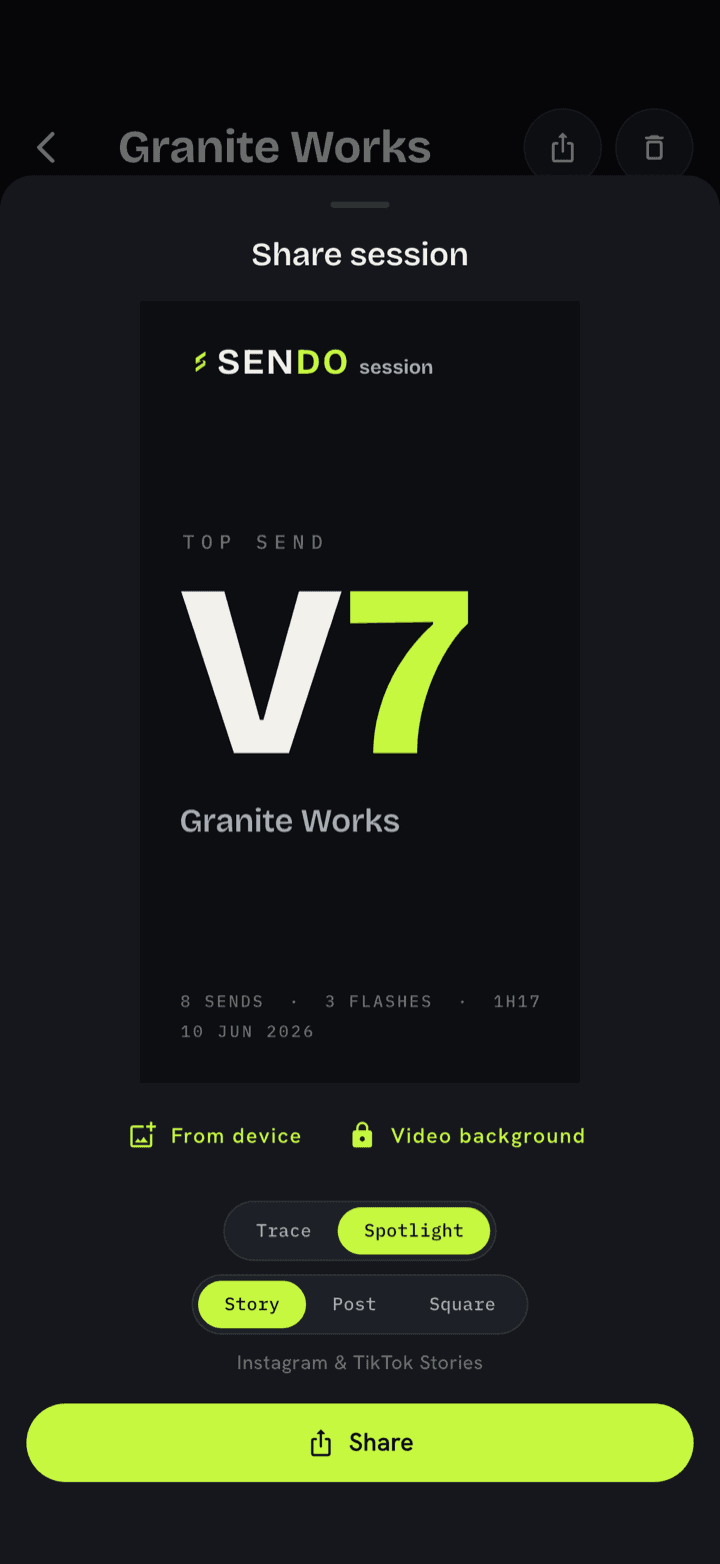
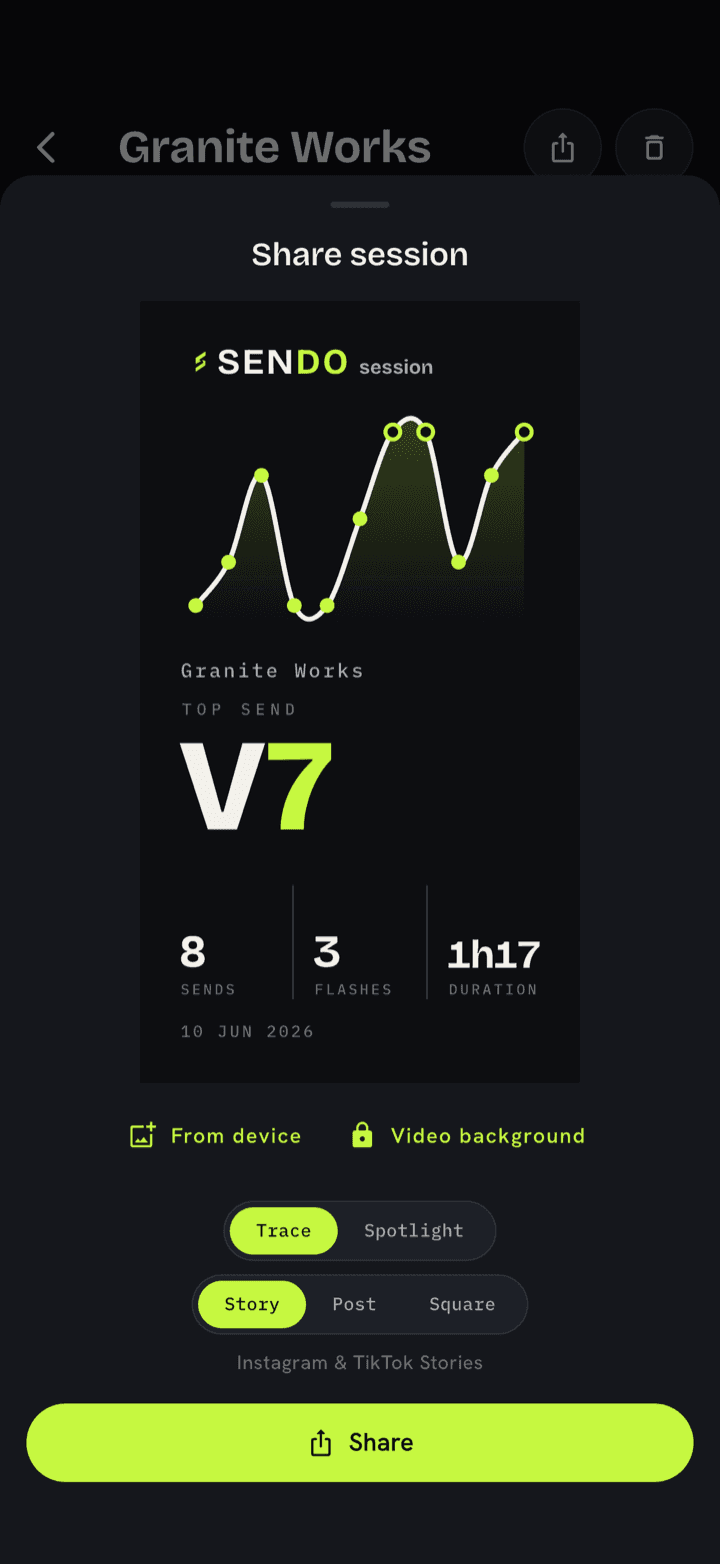
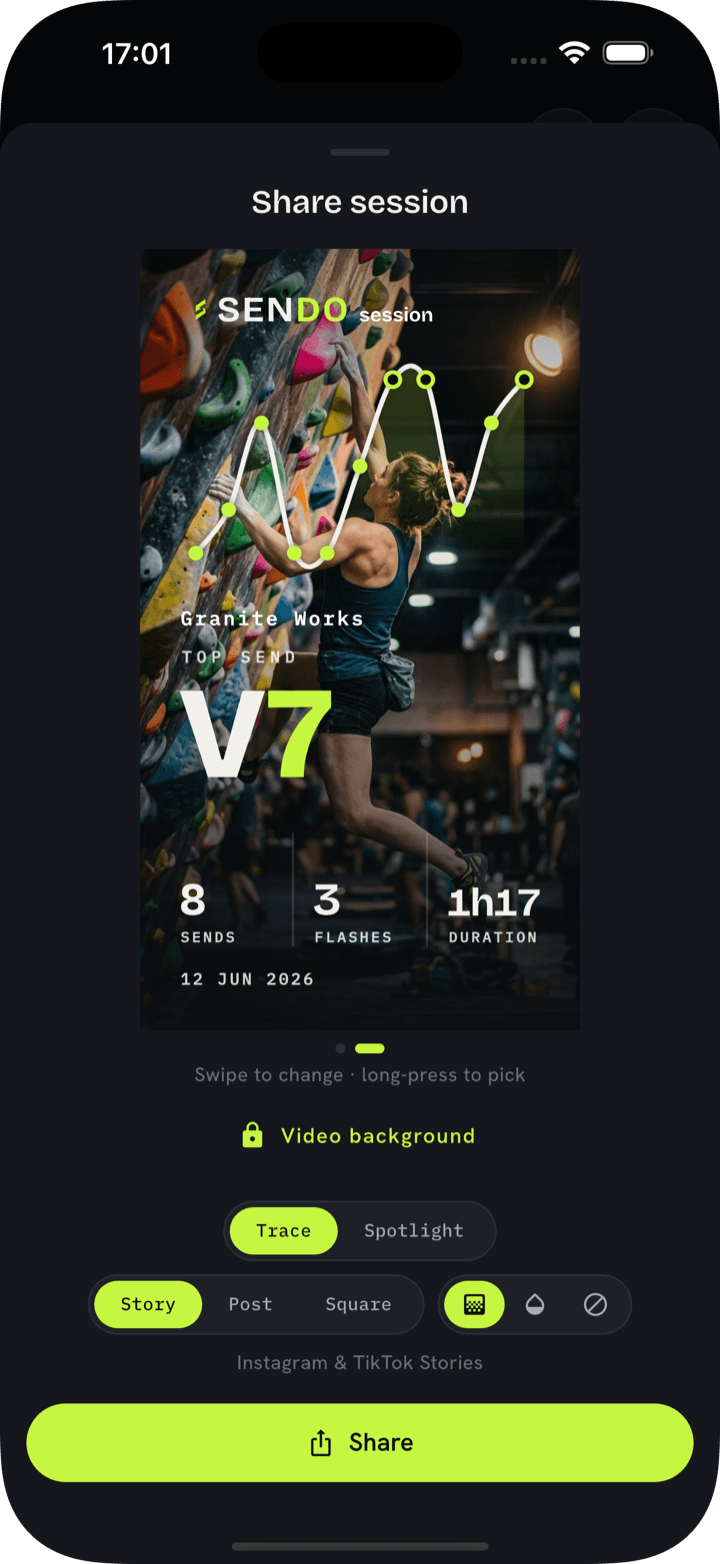
Spotlight is the quick flex: big numeral, clean chrome, the send and the grade doing the talking. Trace abstracts the climb into a single drawn line — minimal and graphic. Photo-trace takes a real photo from your session and lays the send line over it, so the wall itself is the backdrop.
How to share one
Open any climb from your session or history, tap Share, and pick a style. SENDO renders the card and hands it to your phone’s normal share sheet — so it goes straight to Instagram, a group chat, or your camera roll, wherever you’d send anything else.
Image or video
Every style exports as a still image for free. On SENDO Pro, the same cards export as short animated videos — the numeral counting up, the trace line drawing itself — for a story that actually moves.
Nothing to share yet? Start with how to log a climb — every card begins as a one-tap entry on the grade pad.